How to Add Sub Accounts in iSMS
Share SMS credits across your team with separate sub-accounts — each with their own login, limits, and permissions.
Why Use Sub Accounts?
Sub accounts allow a main iSMS account holder to create individual logins for team members — such as sales agents, departments, or branch offices. Each sub-account can send SMS independently using credits allocated from the main account. The main administrator retains full visibility and control.
Step-by-Step: Adding a Sub Account
Navigate to Sub Account Settings
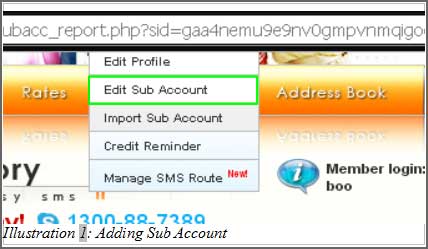
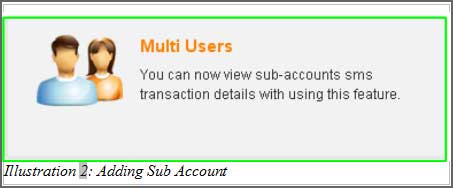
Log in to your iSMS account. Go to Profile → Edit Sub Account, or click the Add Sub Account shortcut in your member console.
Fill in Sub Account Details
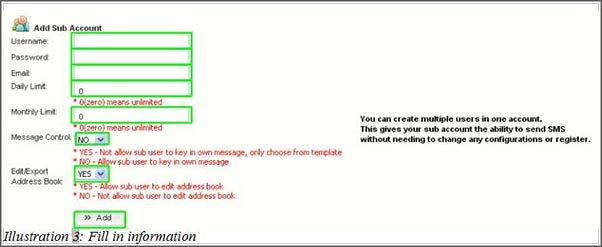
Enter the sub-account username and password (used by the sub-user to log in). You may also set their email address, daily SMS limit, and monthly SMS limit. Setting the limit to 0 means unlimited usage.
Set Permissions and Manage Accounts
As the main administrator, you can control whether sub-accounts can edit the Address Book and compose their own messages. You can edit any sub-account using the Edit button, or remove it using Remove.

Sub-User Experience
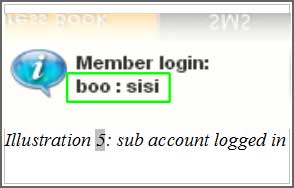
When a sub-account logs in, they will see their own SMS dashboard with the allocated credits. If their daily or monthly limit is reached, they will be unable to send further SMS until the limit resets or is increased by the administrator.

To monitor sub-account usage, see: Sub Account Report →