Chapter 32 · Part 4
Bulk Send via CSV
Send a template to a whole list at once, with each recipient getting their own personalised values. You provide a CSV; iSMS fills the template variables row by row.
How the CSV maps to the template
From Template List, click Actions → Send and choose Bulk Send via CSV. The first column must be phone_number, and every remaining column must match a template variable by name.
For a template with one variable, verificationCode, the file looks like this:
Each row sends one message, with that row’s values filled into the template.
Sending the batch
- 1
Choose the sender
Pick the Business Number to send from — its balance is shown alongside.
- 2
Prepare the CSV
First column
phone_number, then one column per template variable. Use Download on the page to grab a sample with the correct headers. New to CSVs? See Create CSV in Excel. - 3
Upload it
Click to select your
.csvor drag and drop it onto the upload area. - 4
Review & send
Check the template preview, then click Send Bulk Template Messages.
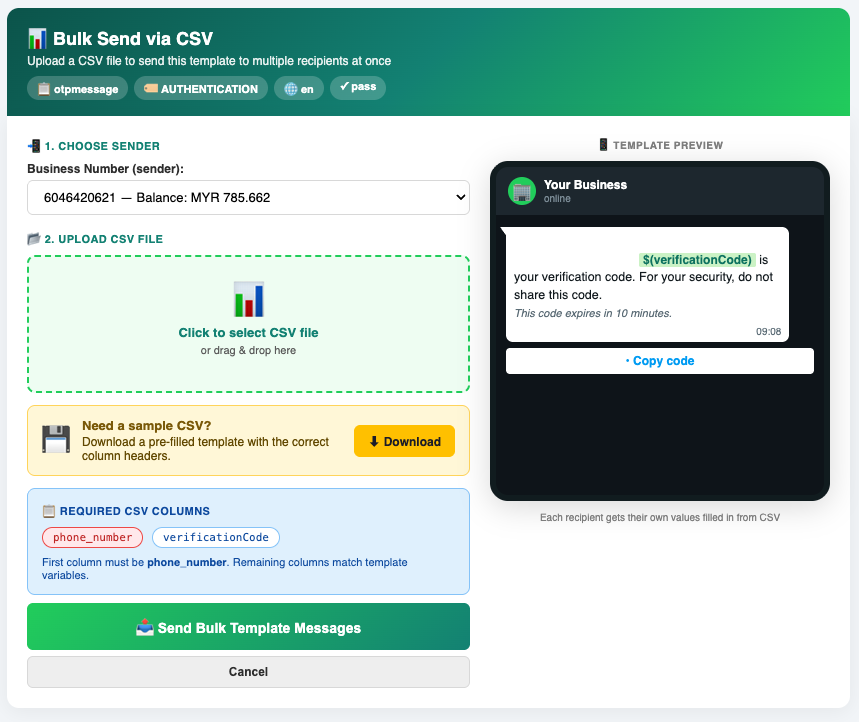
phone_number must be first — downloading the sample CSV is the safest way to get them right.