Chapter 31 · Part 4
Send a WhatsApp Template
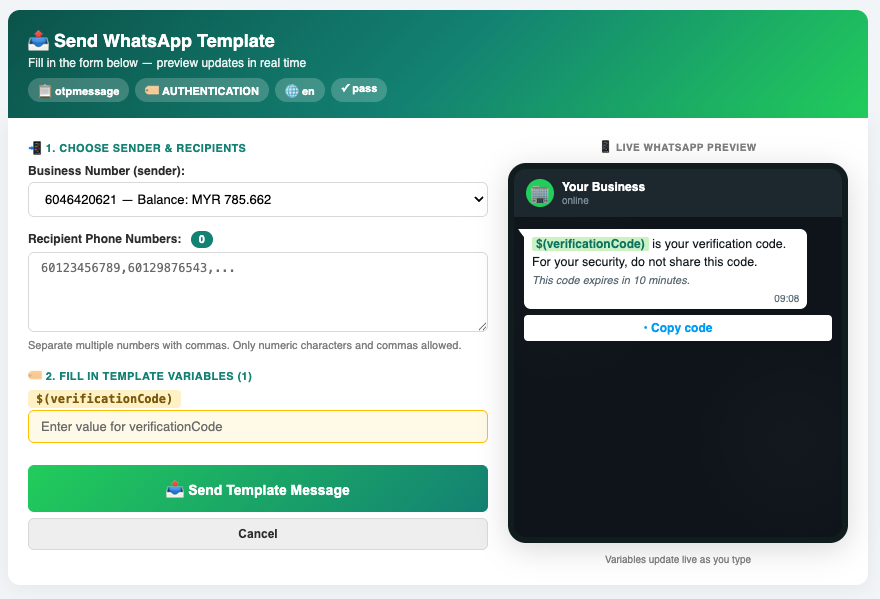
Send an approved template to one or more recipients. Fill in the template’s variables and a live WhatsApp preview shows the exact message before you hit send.
Sending a template
Open Template List, click Actions → Send on the template you want, and choose the single-send form.
- 1
Choose the sender
Pick the Business Number to send from — its current balance is shown next to it.
- 2
Add recipients
Enter one or more recipient phone numbers, separated by commas (numbers only). The counter shows how many you’ve added.
- 3
Fill in the variables
Enter a value for each template variable (for example
$(verificationCode)). The live preview on the right updates as you type. - 4
Review & send
Check the preview reads correctly, then click Send Template Message.
Variables like
$(verificationCode) are replaced with the values you enter when the message is sent. When you list several recipients here, they all receive the same values — to give each recipient their own values, use Bulk Send via CSV.
Need help?
Our team is happy to assist with anything in this guide. Contact us →