Chapter 28 · Part 4
WhatsApp Message Templates
Marketing, Utility, and Authentication messages must use a pre-approved template. The Template List is your library — browse every template, check its approval status, and inspect exactly how it will look before you send.
Your template library
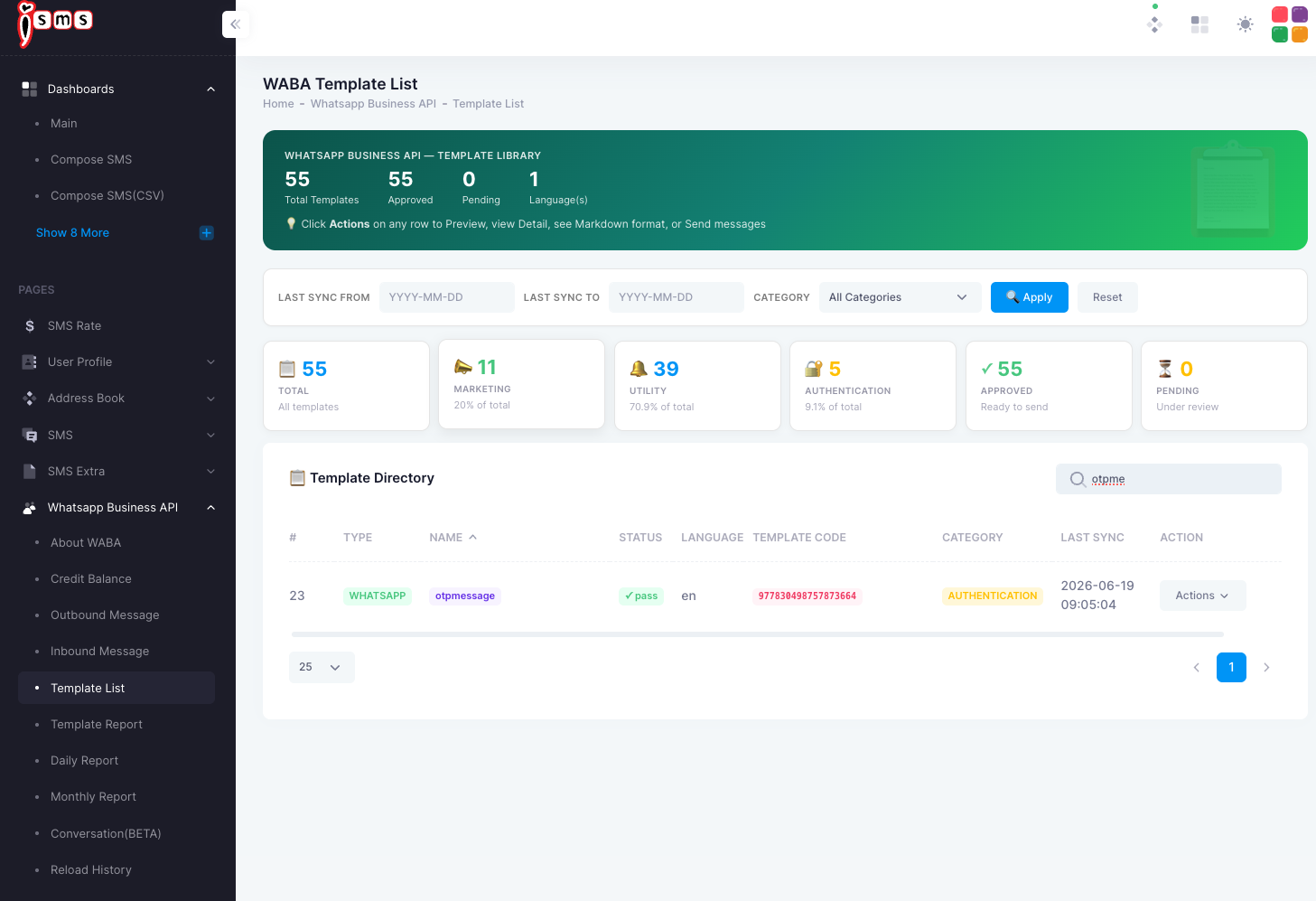
Open WhatsApp Business API → Template List. The summary counts your templates by category and approval status; you can filter by category or last-sync date, and search by name or code.
Each row in the directory shows the template type, name, status, language, template code, category, and last sync. A status of pass means Meta has approved it and it’s ready to send. Need a template that isn’t here yet? Create your own in the template builder and submit it for Meta approval.
Template actions
Click Actions on any row to:
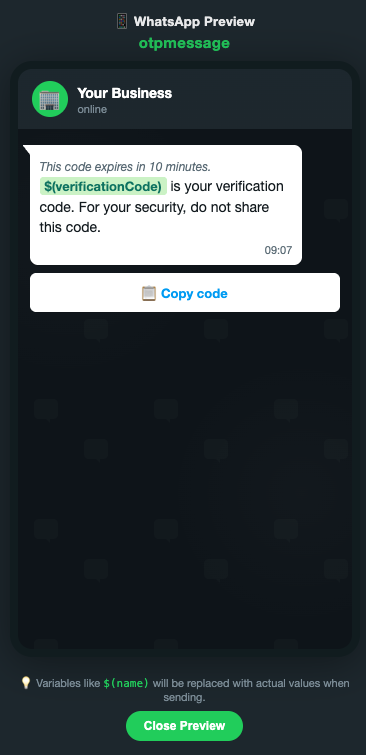
- PreviewSee the template rendered as a WhatsApp message.
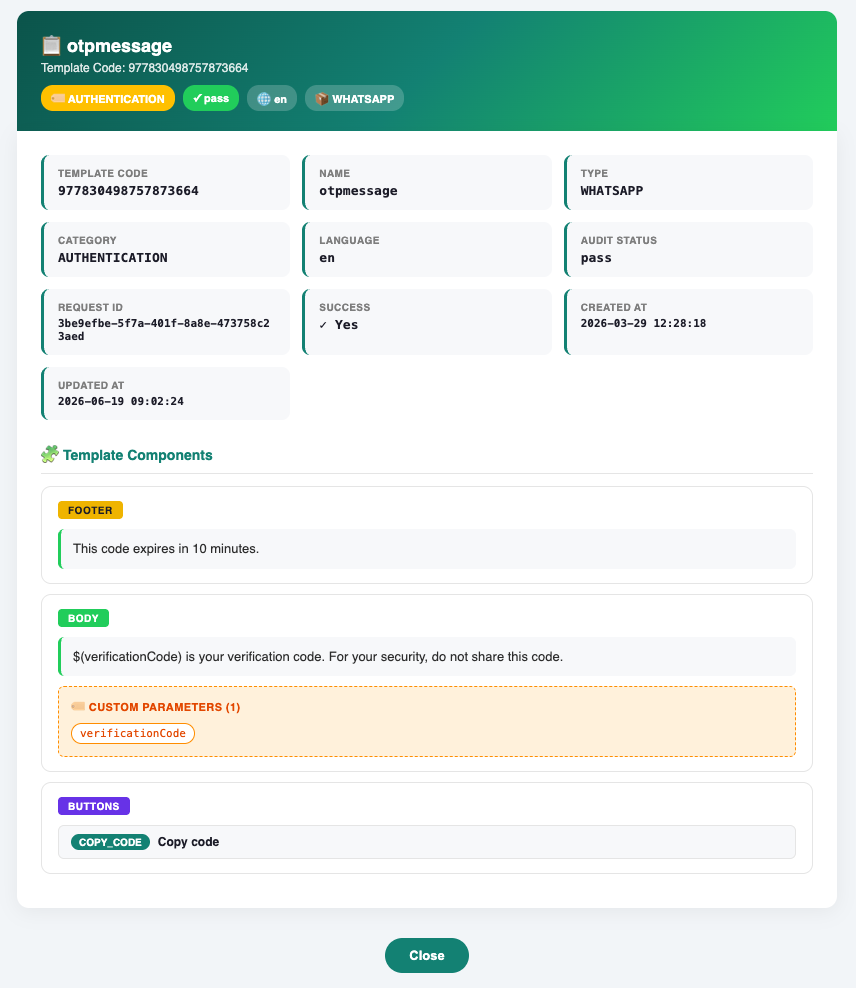
- DetailView its components, variables, and audit status.
- MarkdownView the template in markdown format.
- SendSend the template to recipients — see Send a WhatsApp Template.
- Send CSVSend the template to a list from a CSV file — see Bulk Send via CSV.
- DeletePermanently remove the template from your WhatsApp Business account — see Delete a WhatsApp Template.
Inside a template
The Detail view breaks a template into its parts. A template is built from components — and any variable (shown like $(verificationCode)) is a placeholder that gets filled in per recipient when you send.
- HeaderOptional title, image, or document at the top.
- BodyThe main message text, which can include variables.
- FooterSmall print under the body, e.g. “This code expires in 10 minutes.”
- ButtonsActions such as Copy code, quick replies, or links.
verificationCode variable, and audit status.